How To Auto Number Merged Cells In Excel
How To Auto Number Merged Cells In Excel?
How could we fill series numbers into a list of different size merged cells in Excel? First in our mind is to drag the Autofill handle to fill the merged cells, but, in this case, we will get the following warning message, and can’t fill the merged cells.
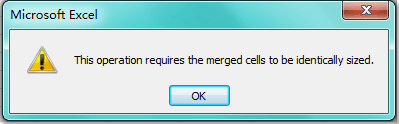
Since the fill handle does not support the merged cells, here, I can talk about some other tricks for solving this problem.
Auto number / fill merged cells with VBA code
Office Tab Enable Tabbed Editing and Browsing in Office, and Make Your Work Much Easier...
Kutools for Excel Solves Most of Your Problems, and Increases Your Productivity by 80%
- Reuse Anything: Add the most used or complex formulas, charts and anything else to your favorites, and quickly reuse them in the future.
- More than 20 text features: Extract Number from Text String; Extract or Remove Part of Texts; Convert Numbers and Currencies to English Words.
- Merge Tools: Multiple Workbooks and Sheets into One; Merge Multiple Cells/Rows/Columns Without Losing Data; Merge Duplicate Rows and Sum.
- Split Tools: Split Data into Multiple Sheets Based on Value; One Workbook to Multiple Excel, PDF or CSV Files; One Column to Multiple Columns.
- Paste Skipping Hidden/Filtered Rows; Count And Sum by Background Color; Send Personalized Emails to Multiple Recipients in Bulk.
- Super Filter: Create advanced filter schemes and apply to any sheets; Sort by week, day, frequency and more; Filter by bold, formulas, comment...
- More than 300 powerful features; Works with Office 2007-2019 and 365; Supports all languages; Easy deploying in your enterprise or organization.
 Auto Number / Fill Merged Cells With VBA Code


Amazing! Using Efficient Tabs In Excel Like Chrome, Firefox And Safari!
Save 50% Of Your Time, And Reduce Thousands Of Mouse Clicks For You Every Day!
The following VBA code can help you to number the selected merged cells quickly. Please do as follows:
1. Hold down the ALT + F11 keys, and it opens the Microsoft Visual Basic for Applications window.
2. Click Insert > Module, and paste the following code in the Module Window.
VBA code: Auto number merged cells
1 2 3 4 5 6 7 8 9 10 11 12 13 14 15 16 17 | Sub NumberCellsAndMergedCells() 'Update 20141028 Dim Rng As Range Dim WorkRng As Range On Error Resume Next xTitleId = "KutoolsforExcel" Set WorkRng = Application.Selection Set WorkRng = Application.InputBox("Range", xTitleId, WorkRng.Address, Type: = 8) Set WorkRng = WorkRng.Columns(1) xIndex = 1 Set Rng = WorkRng.Range("A1") Do While Not Intersect(Rng, WorkRng) Is Nothing Rng.Value = xIndex xIndex = xIndex + 1 Set Rng = Rng.MergeArea.Offset(1) Loop End Sub |
3. Then press F5 key to run this code, and a prompt box will pop out to let you select the merged cells you want to fill, see screenshot:

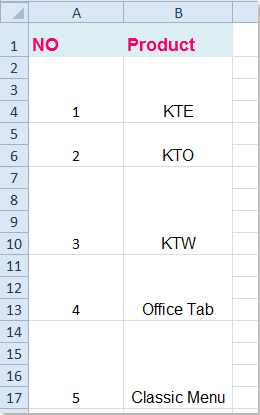
4. After selecting the merged cells, and click OK, now, your selected merged cells have been filled with sequential numbers, see screenshot:
Related articles:
 دانلود موزیک روز کامپیوتر جوک و sms اس ام اس مطالب جالب